

A slow PC usually has two enemies: heat and clutter. One lives inside the case as dust, pet hair, dried thermal grime, and blocked vents. The other hides in Windows as startup apps, temporary files, bloated browser caches, outdated drivers, and software nobody remembers installing. Ignore both for long enough and even a decent machine starts acting like a budget laptop from 2014. Clicks lag. Fans scream. Updates fail because the drive is nearly full. Not fun.
Good PC cleaning is not about spraying random chemicals at a keyboard or trusting a miracle “one-click optimizer” that promises a 300% performance boost. That stuff is marketing noise. Proper computer maintenance is boring in the best way: safe tools, short routines, clear checks, and no risky deleting of folders Windows needs to survive. Think of it like changing air filters in a car. Skip it, and the engine still runs for a while. Keep skipping it, and the heat bill arrives.


PC Cleaning Secrets for Hardware Cleaning Without Breaking Anything
Hardware comes first because heat quietly murders performance. Modern CPUs and GPUs protect themselves by lowering clock speeds when temperatures climb. That is called thermal throttling, and it can make a fast desktop feel weirdly sluggish during gaming, video calls, browser overload, or even Windows updates. A dusty heatsink is not just ugly. It is insulation. Bad insulation.
Start with the boring safety step: shut the PC down, unplug power, and wait a few minutes. For a laptop, power it off completely and avoid opening anything unless the manufacturer’s service guide says it is user-accessible. Static electricity is not mythical, but it is also not a horror movie. Touching a metal part of the case before working, avoiding carpet, and using gentle pressure handles most home cleaning situations.
Dust Removal Tools That Actually Belong Near a PC
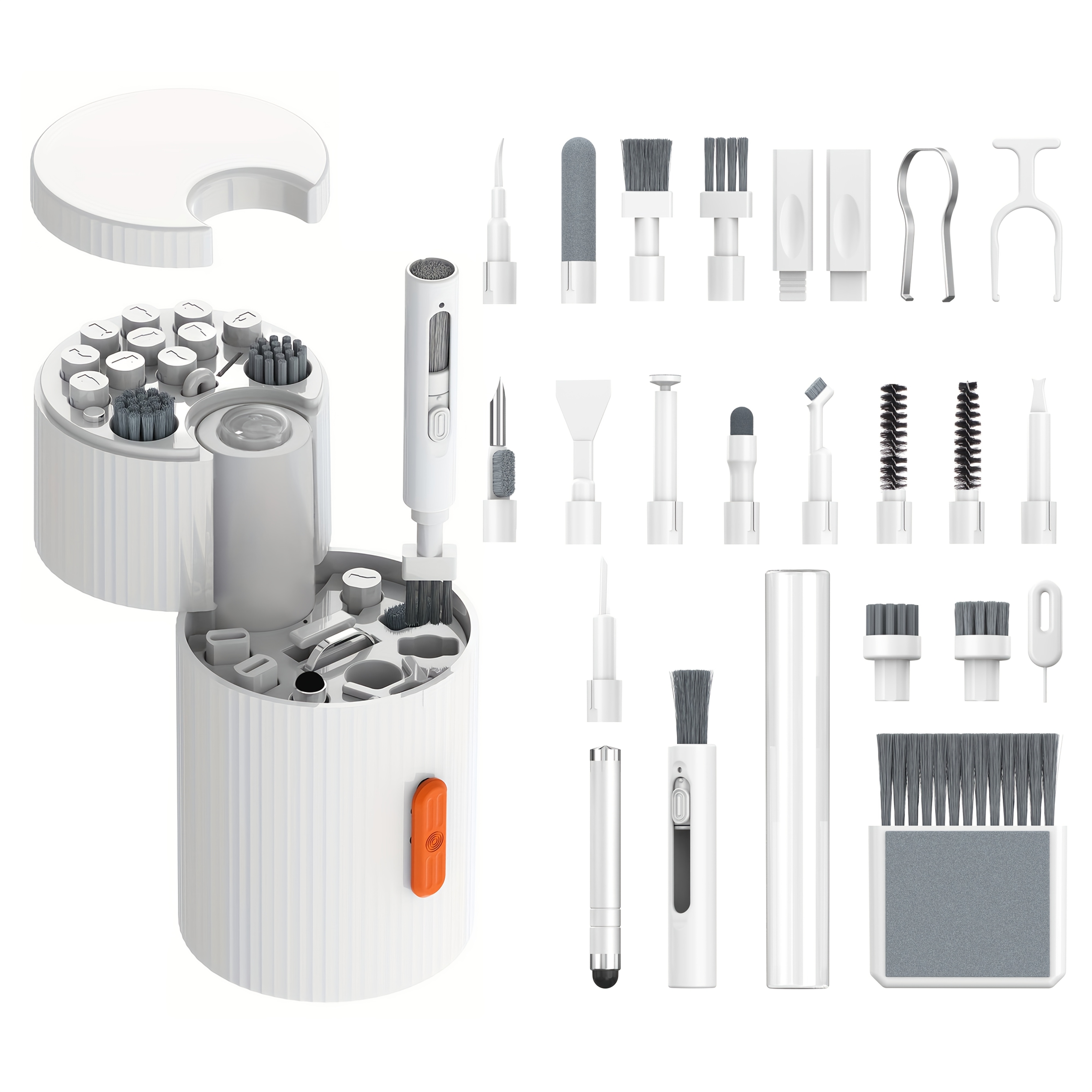
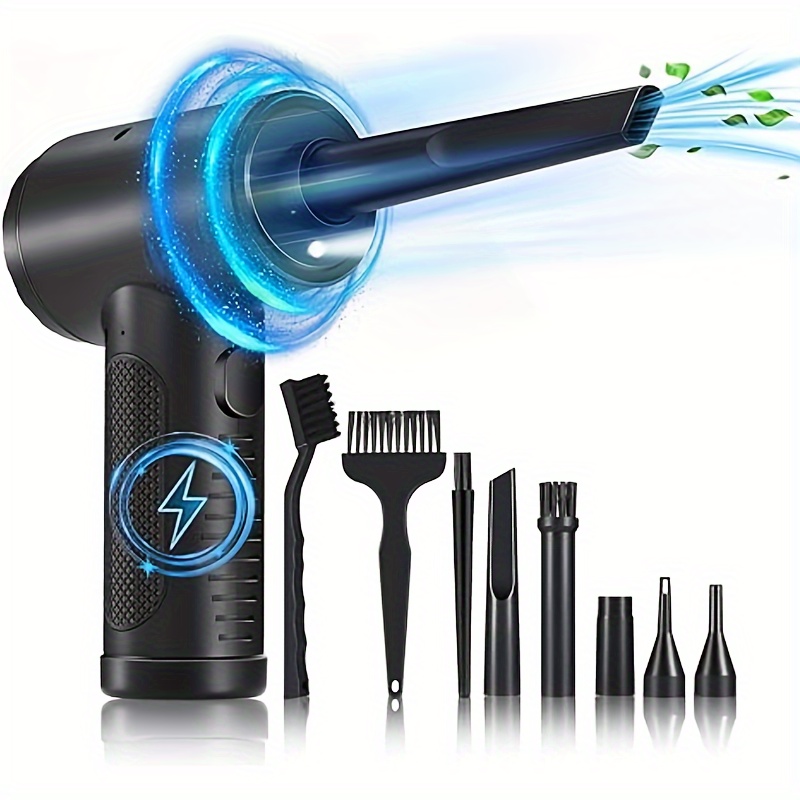
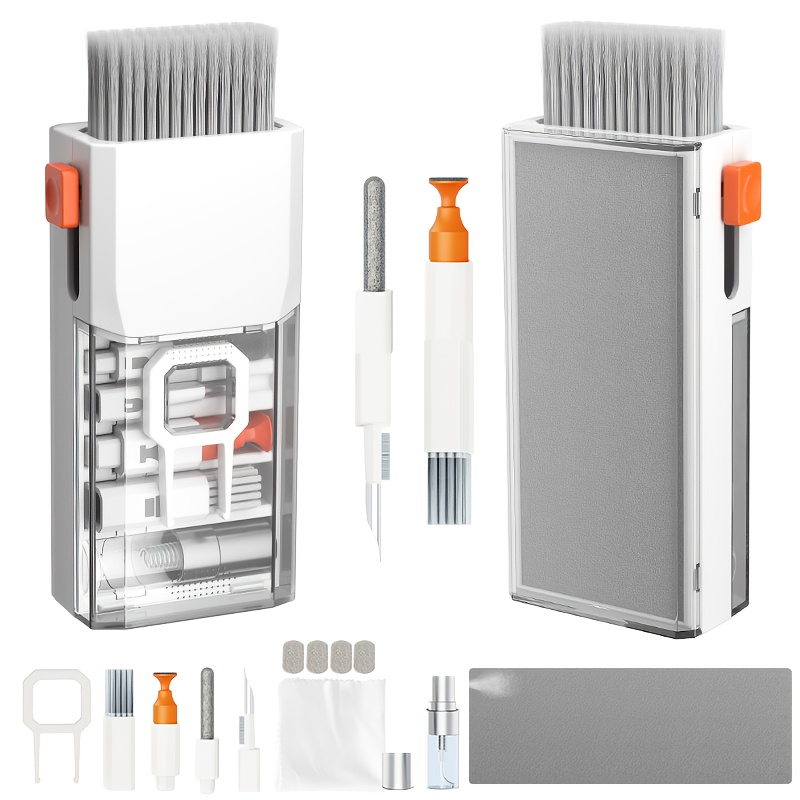
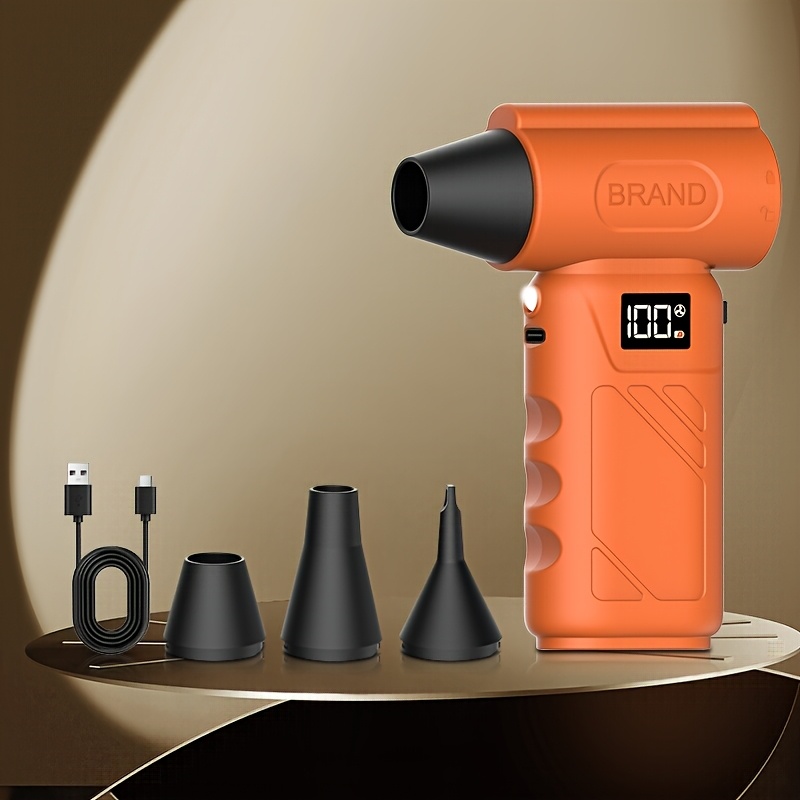
For dust removal, the safe kit is simple: compressed air or an electric air duster, a soft anti-static brush, microfiber cloths, cotton swabs, and 70% to 90% isopropyl alcohol for non-screen surfaces. The screen gets its own treatment: a barely damp microfiber cloth with distilled water or a screen-safe cleaner. Never spray liquid directly onto the display. Spray the cloth, then wipe. Claimed “multi-surface household cleaners” are often too aggressive for monitor coatings. Tested on plenty of grimy setups, the cheap microfiber method wins more often than flashy cleaning gels.
The keyboard needs patience. Turn it upside down and tap lightly, then use air in short bursts. Hold laptop fans still if blowing air through vents, because spinning a fan wildly with compressed air can stress the bearing. Desktop users should remove the side panel and clear dust from intake filters, front mesh, GPU fans, CPU cooler fins, and the power supply intake. Do not open the power supply itself. Seriously. That box can hold dangerous charge even when unplugged.
A practical schedule works better than panic cleaning. A clean office PC can usually go three months between light cleanups. A gaming tower on the floor, near carpet, pets, or an open window, deserves attention every four to six weeks. If the fan noise ramps up during basic tasks, check airflow before blaming Windows. Heat turns small problems into expensive ones.
Temperature checks make the whole process less guessy. Core Temp can show CPU core readings, GPU-Z tracks graphics card thermals, and tools like CrystalDiskInfo or HD Tune can report drive health and temperature. Under normal desktop use, many CPUs sit around 35°C to 55°C, while gaming or rendering can push much higher depending on the cooler. A sudden jump after months of normal behavior usually points to dust, poor airflow, a loose cooler, or dried thermal paste. The key insight: cleaning the airflow path often restores speed before any software tweak matters.
Software Cleanup Tricks That Speed Up Windows Without Risky Deletions
Once the hardware can breathe, the next target is digital ballast. A fresh Windows installation starts lean. Then come launchers, printer utilities, RGB control panels, game stores, meeting apps, browser extensions, cloud sync tools, and trial software that quietly joins startup. One installed program does not automatically slow everything down. One program that starts every boot, checks for updates, runs background services, and nags the network? Different story.
Real software cleanup starts in Settings, not with some mystery cleaner downloaded from an ad. On Windows 11, open Settings, then System, then Storage. The storage overview shows temporary files, installed apps, documents, videos, and large categories that eat the drive. Disk cleanup still exists through cleanmgr, and it remains useful, but Microsoft clearly wants most users in the newer Storage interface and Storage Sense. That is fine. The newer panels explain more and reduce the chance of deleting the wrong thing.
Cache Clearing, Temporary Files, and the Downloads Trap
Cache clearing sounds like free speed, but it needs context. Browser cache helps websites load faster by storing images, scripts, and page files locally. Deleting it can fix broken pages or reclaim space, but it may make frequently visited sites load slower for a bit. Edge, Chrome, and Firefox all let users clear cached images and files without wiping passwords or autofill. That distinction matters. Deleting cookies may log users out. Deleting saved passwords without a password manager ready is self-inflicted pain.
Temporary files are safer, but not every checkbox deserves blind trust. Windows may show Previous Windows installation files after a major upgrade. If the PC works properly and there is no plan to roll back, removing that folder can reclaim serious space. Downloads is different. That is personal storage, not trash. Plenty of people keep tax PDFs, installer files, firmware downloads, and photos there. Before any bulk deletion, copy important files to an external drive or cloud backup. Backups are cheaper than regret.
Startup management is the easy win. Press Ctrl+Shift+Esc, open Task Manager, and review startup apps. Disable non-essential entries like game launchers, updaters, chat clients, or hardware dashboards that are not needed every boot. Nothing gets uninstalled from this screen. It only stops automatic launch, so reversing the change is simple. For advanced users, Microsoft Autoruns gives a deeper look, including services, scheduled tasks, and shell extensions. It is powerful. It also deserves respect. Disable what is recognizable first, research the rest, and avoid random changes to security or driver entries.
For virus removal, Windows Security is good enough for many home users if it stays updated and real-time protection is on. Run a full scan when pop-ups appear, browser search changes by itself, or performance drops after installing unknown software. Spybot, Malwarebytes, and similar tools can help with unwanted software and tracking junk, but stacking five real-time antivirus suites is a bad idea. They fight for resources and can slow the system they claim to protect.
Drive type matters too. Defragmentation helps old magnetic hard drives because scattered file pieces force the read head to move more. SSDs do not need defragging in the traditional sense. Windows “Optimize Drives” handles SSD trim operations automatically, which helps the drive manage unused blocks. Keep at least 10% to 15% free space on any main drive if possible. Full SSDs can feel slower because the controller has less room to organize writes. Bottom line for this section: delete carefully, disable startup clutter confidently, and never treat system folders like a junk drawer.
System Optimization Habits That Keep a Clean PC Fast Longer
The best system optimization routine is the one people repeat. A marathon cleanup once a year helps, but a 20-minute monthly check prevents the worst slowdowns. Picture a small design studio with five PCs: one tower for video work, two laptops for admin, and two older desktops for browsing and invoicing. The machine that fails first is rarely the newest or oldest. It is the one nobody maintains because “it still works.” Then a drive fills to 98%, Windows updates fail, the browser carries 37 extensions, and the fan sounds like a hair dryer.
Updates are part of cleaning now. Operating system patches, browser updates, GPU drivers, printer utilities, and app fixes often close security holes and improve stability. Windows Update handles the basics, while manufacturer tools from AMD, Intel, Nvidia, Dell, Lenovo, HP, ASUS, and others can help with device-specific drivers. Be careful with third-party driver updaters. Some are useful, many are pushy, and a few recommend questionable packages. If the PC is stable, do not chase every driver version just because a tool waves a red badge.
Smart Storage Habits for SSDs, Hard Drives, and Cloud Sync
Storage planning prevents a lot of cleanup drama. Large video projects, game libraries, phone backups, and duplicate photo folders should not live forever on a cramped system SSD. Windows lets users move default folders such as Documents, Pictures, and Downloads to another internal drive. Microsoft Store apps can sometimes be moved through Settings, Apps, Installed apps, then Move. Traditional desktop programs usually need reinstalling to change drives because their registry paths and components expect a specific location.
OneDrive, Google Drive, Dropbox, and similar services add another twist. Files can be online-only, locally available, or always kept on the device. Online-only files save disk space, but relying on them before travel or field work can backfire if the internet connection is weak. The clean setup is intentional: active projects local, archives online or external, critical files backed up in at least two places. A USB SSD plus cloud backup is not overkill for work documents, family photos, or client files.
Third-party cleanup tools deserve a blunt note. CCleaner, BleachBit, Revo Uninstaller, IObit Uninstaller, TreeSize Free, WinDirStat, Everything, and similar utilities can reveal junk and remove leftovers better than Windows alone. They can also delete too much if used aggressively. Registry cleaning is the classic trap. It usually delivers no visible speed gain and can break software if entries are removed carelessly. If a registry tool is used, create a restore point first. Better yet, leave the registry alone unless solving a specific problem.
Warning Signs That Cleaning Is No Longer Enough
Some symptoms need diagnosis, not another round of deleting files. Random shutdowns, clicking hard drives, blue screens after driver updates, repeated malware alerts, or SSD health warnings deserve immediate backups. After that, check temperatures, event logs, drive health, and recent software changes. A PC that freezes under load may have a cooling problem. One that freezes while copying files may have a failing drive. Same word, different cause.
Useful monitoring does not require a lab bench. Task Manager shows CPU, memory, disk, GPU, startup impact, and background processes. Resource Monitor gives more detail when disk usage stays pinned. Core Temp catches CPU heat spikes. GPU-Z shows GPU temperature, fan speed, memory use, and power draw. CrystalDiskInfo flags drive health using SMART data, which is the drive’s own self-reporting system. Not perfect, but helpful. If a drive reports caution or bad health, stop cleaning and start copying data.
A realistic maintenance rhythm looks like this in practice: wipe screen and keyboard weekly, clear obvious desktop clutter monthly, review startup apps every month or two, run Storage Sense or Windows cleanup monthly, inspect dust filters every six weeks on floor-standing towers, and do a deeper internal clean every three to six months depending on dust exposure. Before major uninstall sessions, driver changes, restore point deletion, or system file cleanup, back up first. Simple rule. Saves careers.
The payoff is not magic. It is measurable: faster boot behavior, fewer update failures, quieter fans, lower temperatures, better security, and longer component life. A clean PC feels less like a mystery appliance and more like a machine under control, which is exactly where every user should want it.


