

Performance complaints rarely come from one “bad” part. They come from PC components that don’t match, aren’t configured correctly, or are quietly hitting limits that never show up in a product spec sheet. The frustrating part is how these performance issues masquerade as something else. A “slow PC” might really be a tiny SSD that’s constantly near full, killing storage speed. Stutters in a game might look like a weak graphics card, but the real problem can be single-channel memory or a cooler that can’t hold boost clocks, triggering thermal throttling. Even stability problems that feel like “Windows being Windows” often trace back to a shaky power supply or an entry-level motherboard VRM that overheats under load.
To make this real, imagine a common 2026 setup: a strong midrange CPU paired with one stick of RAM, an 8GB GPU, and a 500GB SSD that’s 92% full. On paper it boots. In practice it hiccups, drops frames, and sometimes crashes when a new driver lands. The fixes are usually boring. They’re also measurable. This is hardware optimization and system tuning done with restraint, so the machine feels snappy without risking warranty drama or toasted silicon.


CPU bottleneck problems and motherboard limits that drag down performance
A modern CPU is supposed to sprint. Boost clocks jump up for short bursts, then settle into sustainable speeds. When that doesn’t happen, users see the classic CPU bottleneck: the GPU waits, frames bunch up, and the whole system feels “busy” even when average utilization looks fine.
One typical story involves a creator who streams while gaming. The CPU has plenty of cores, but background tasks and a conservative BIOS profile keep power limits tight. The result is lower sustained clocks, so encoding spikes steal time from the game thread. Frame pacing suffers, not because the CPU is weak, but because it never gets to behave like the CPU that was paid for.
When the motherboard VRM becomes the hidden speed limiter
Cheap boards can run high-end chips, but “runs” is not the same as “runs well.” If the VRM can’t stay cool, the board protects itself by lowering CPU power delivery. That’s not a crash. It’s silent performance loss. Users notice longer compile times, inconsistent benchmark loops, and sudden dips during long matches.
The practical play is simple: check that the board has adequate heatsinking and airflow over the VRM area, then confirm the CPU is holding expected clocks under a sustained load. BIOS updates can help stability and memory training, but they can also reset power settings, so it’s worth re-checking after an update.
System tuning that helps without wrecking warranties
Safe system tuning starts with enabling the correct memory profile in BIOS (XMP or EXPO, depending on platform) and confirming power limits are sensible for the cooler being used. A mild undervolt can reduce temperatures and improve sustained clocks, but it should be approached cautiously, because instability can corrupt data. Nobody wants a “faster” PC that randomly reboots mid-project.
Look for clear signs: clock speeds that drop after a few minutes, fans ramping wildly, or performance that changes between the first and third run of the same workload. That’s the machine telling on itself. Fix the platform, then move on to the components that feed the CPU, starting with memory and storage.
Want a visual walkthrough of BIOS basics and safe stability checks before touching anything risky? This kind of step-by-step is useful for avoiding “tweak chaos.”


RAM upgrade choices and storage speed mistakes that make a fast PC feel slow
Memory and storage don’t get the hype of a CPU or GPU, yet they decide how responsive the system feels hour to hour. A single stick of RAM is the easiest self-inflicted wound. In single-channel mode, bandwidth drops hard compared to a matched pair. Average FPS might fall a little, but the real pain is the 1% lows. Those are the micro-stutters that turn “smooth enough” into “why does it hitch every time something explodes?”
It gets messier with DDR5. Even when a second module is added later, identical model numbers do not always mean identical internal chips. Mixed memory can train poorly, force conservative timings, or introduce flaky instability that looks like driver problems. A clean RAM upgrade is typically a matched kit installed as intended, then validated with a few hours of stress testing.
Capacity traps: why small SSDs age badly
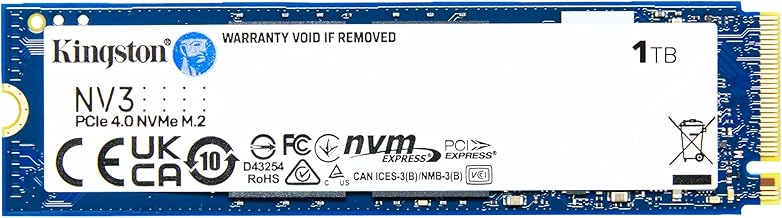
Small SSDs, especially 120GB to 500GB, are a false economy in 2026. The price difference per gigabyte often isn’t dramatic, yet usability is. When a drive is near full, many SSD controllers lose write performance because they have less spare area to juggle data. That shows up as sluggish installs, slow updates, and random pauses during file operations. The system is not “old.” It’s suffocating.
A concrete example: a 500GB boot drive with the OS, a couple of modern games, and a creative app cache can end up at 88% used. At that point, patches and shader caches become a daily annoyance. Moving to a 1TB SSD, keeping 15% to 25% free space, and relocating bulky libraries can restore that instant response people associate with flash storage. That’s storage speed in the real world, not a marketing screenshot.
HDD habits that reintroduce latency
Splitting the OS on SSD and everything else on a mechanical hard drive can still make sense for archives, but it often sneaks latency back into everyday use. If a game streams textures from an HDD, or a project pulls assets from a slow disk, load times climb and background hiccups creep in. Defragmenting an HDD can help in specific cases, but it won’t turn it into an SSD. The better move is keeping active workloads on solid state storage and reserving spinning disks for cold data.
Memory bandwidth and fast storage are the “invisible” upgrades. Once they are handled, graphics and cooling problems become easier to diagnose because the system stops tripping over basic plumbing.
Seeing stutter analysis explained with frame-time graphs helps connect the dots between single-channel memory and those ugly 1% lows.


GPU performance killers: VRAM limits, thermal throttling, and power supply instability
GPU performance can collapse for reasons that have nothing to do with raw compute. VRAM is the big one. An 8GB card can still run plenty of games, but newer textures, higher quality settings, and heavier geometry pipelines can overflow that pool even at 1080p. When VRAM fills, the GPU starts borrowing system memory over PCIe. Latency spikes, textures pop in late, and some titles simply crash. It feels random. It isn’t.
The fix is sometimes a settings change, not an instant purchase. Dropping texture quality one notch can reduce VRAM pressure dramatically while keeping the image sharp. Turning down ray tracing or high-resolution shadow caches can also help. Still, if a system is intended to last, more VRAM headroom reduces the risk of sudden obsolescence as game requirements creep upward.
Cooling mistakes that trigger thermal throttling
Thermal throttling is performance theft disguised as “normal temps.” A CPU or GPU that hits its thermal limit will downclock to protect itself. Users see it as a drop in FPS after 10 minutes, louder fans, and inconsistent results between cold and warm runs. A common culprit is a tiny 120mm liquid cooler installed for looks or clearance. It adds pump complexity and failure points, but the radiator area is still small. Many decent air coolers dissipate heat better with fewer things to break.
Good airflow is unglamorous. It works. Cleaning dust filters, setting sensible fan curves, and making sure case intake is not blocked can stabilize boost behavior without touching voltages. If repasting is on the table, it should be done carefully because physical damage and warranty disputes are real possibilities.
Power supply problems that look like “driver crashes”
A mediocre power supply can sabotage everything. Low-wattage units in the 450W to 550W range can become a hard ceiling the moment a stronger GPU is installed. Worse, generic units often lack robust protection circuits. When they fail, they can take other parts with them. That’s the expensive kind of performance problem.
Optimization here is about margin and stability. Choose sufficient wattage for transient spikes, keep cables seated properly, and avoid daisy-chaining high-draw connectors when separate leads are available. If overclocking is on the agenda, extra caution is required because higher power draw increases heat and stress across the entire platform. A stable system is faster than a flaky one. Always.
The next troubleshooting step is connecting symptoms to causes. Is it VRAM overflow, a power dip, or heat soak after several minutes? That question saves hours.


