

Slim laptops fixed one problem and created another. The machines got lighter, quieter, and cleaner on a desk, but the ports disappeared. A MacBook Air, a compact Windows ultrabook, a Chromebook tablet, or even a modern iPad can leave a user staring at one or two USB-C sockets while needing a keyboard, mouse, SSD, camera card, headset, webcam, and charger. That is where a USB hub earns its spot. It turns one connection into several, reduces cable clutter, and keeps the daily setup from becoming a bag of loose adapters.
The catch? Not every hub is the same. Some are fine for a mouse and keyboard but painfully slow with storage. Some advertise USB 3.x while hiding the real data transfer speed in tiny print. Others include HDMI, Ethernet, SD readers, or power delivery, but skip the one port that would matter most. Real talk: the right pick is less about buying the fanciest block of aluminum and more about matching the port count, port type, and power behavior to the devices already on the desk.
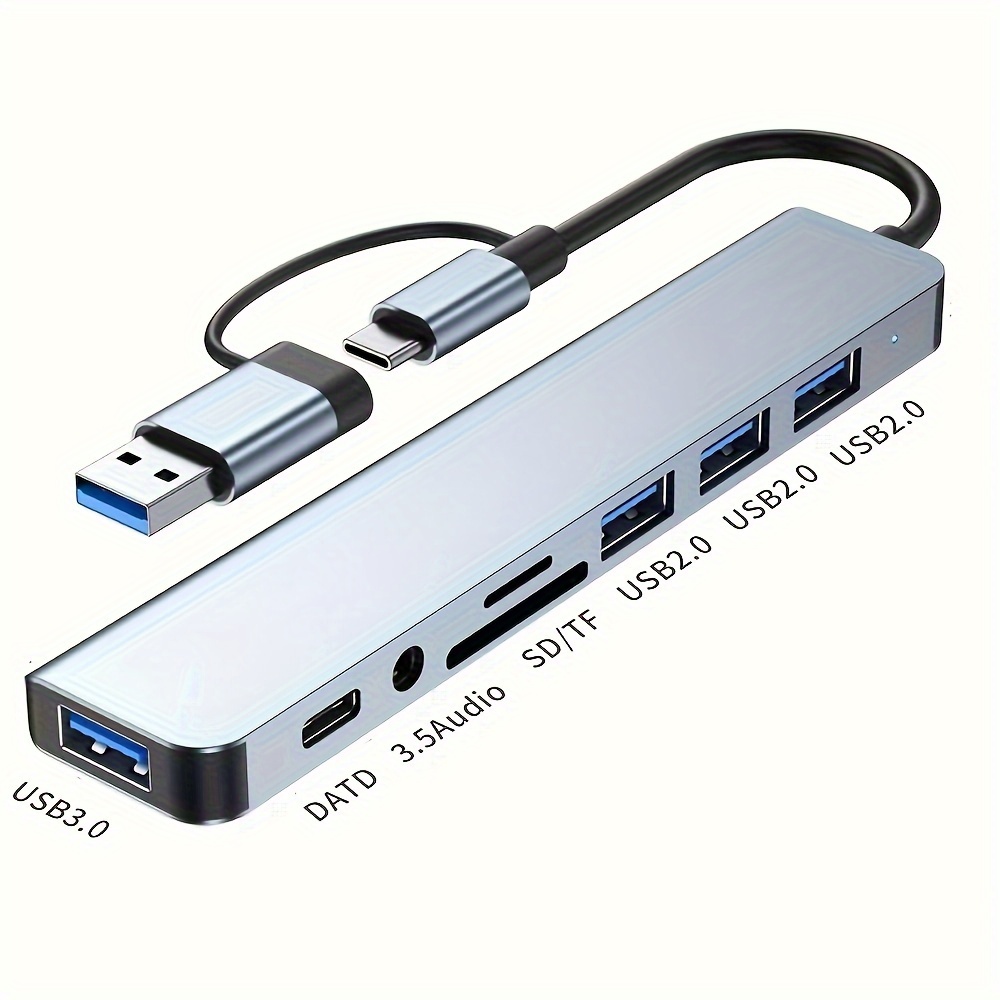
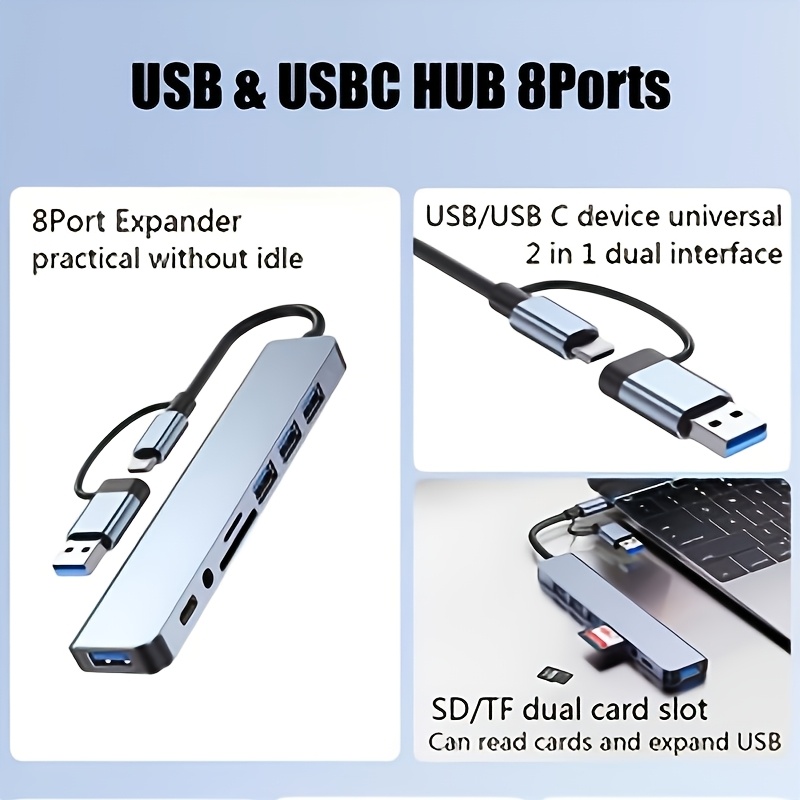
USB Hub Choice Insights: What a Hub Really Does for Modern Laptops
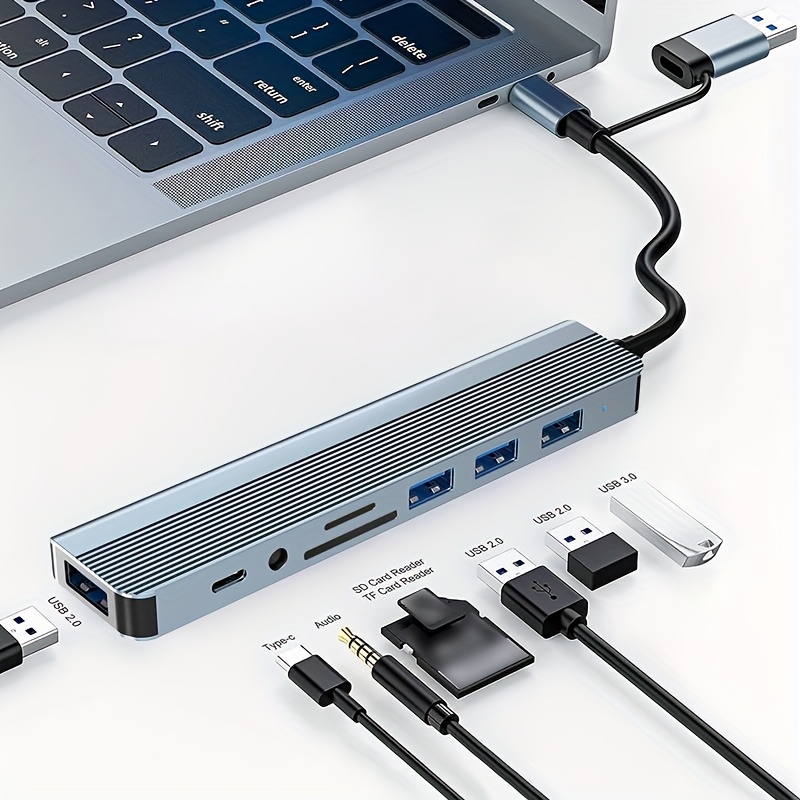
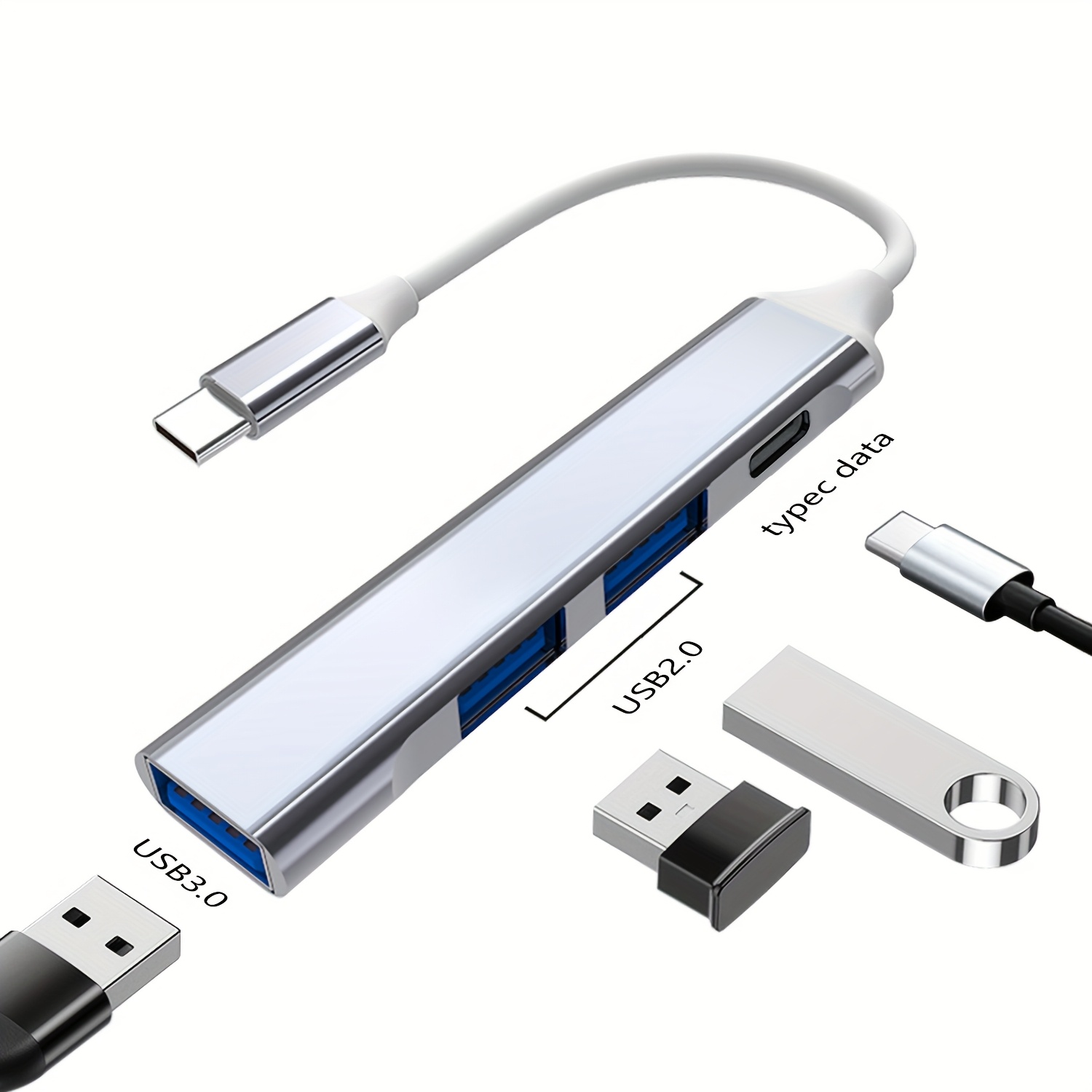
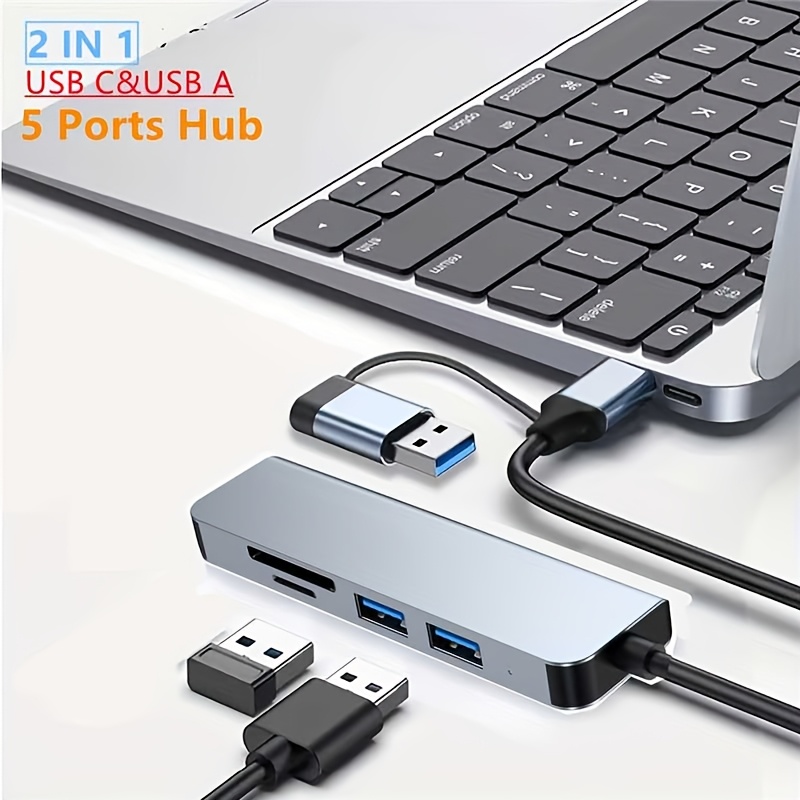
A USB hub is basically a port multiplier. Plug it into one USB-A or USB-C connection, and it gives the computer more places to connect peripherals. Simple idea. Messy execution. A basic hub may add four USB-A ports for accessories. A fuller USB-C model may add USB-A, USB-C data, HDMI, SD, microSD, Ethernet, audio, and pass-through charging. Same category name, very different jobs.
Maya, a freelance video editor working from a 13-inch laptop, is a useful example. Her machine has two USB-C ports. One is often taken by power. That leaves one port for a portable SSD, camera card reader, external monitor, and audio interface. Without a hub, she swaps cables all day. With the right model, the laptop becomes a small workstation. With the wrong one, her 100GB footage dump crawls because the storage drive landed on a USB 2.0 port rated at 480 Mbps. Painful. Tested in similar setups, a 100GB transfer that takes around 5 minutes on a 5 Gbps USB 3.0-class port can stretch past an hour on older USB 2.0 hardware.
USB Hub vs Docking Station: Pick the Tool, Not the Bigger Box
The line between a hub and a docking station gets blurry because both add connections. The practical split is workload. A hub is usually small, portable, and focused on peripherals. It is the travel bag fix for keyboards, mice, USB drives, SD cards, and maybe one HDMI screen. A docking station is bigger, often desk-bound, and usually handles multiple displays, wired Ethernet, stronger charging, and more permanent cabling.
For occasional extra ports, a compact hub makes sense. For a daily desk with two monitors, Ethernet, speakers, webcam, mechanical keyboard, mouse receiver, and charging through one cable, a dock is cleaner. Here is the thing: buying a dock when only two extra ports are needed wastes money and bag space. Buying a tiny hub for a multi-monitor office setup creates frustration by lunchtime.
Device compatibility matters before anything else. A USB-C connector does not automatically mean Thunderbolt, DisplayPort Alt Mode, or full charging support. Thunderbolt 3 and Thunderbolt 4 can reach up to 40 Gbps. Thunderbolt 5 can go higher, with up to 80 Gbps generally and up to 120 Gbps in certain display-focused modes. Great numbers, but only if the laptop, hub, cable, and attached device all support the same standard. The slowest link wins. Always.
So the first useful question is not “Which hub is best?” It is sharper: what does the computer need to connect, how often, and at what speed? That question cuts through most marketing fog.
USB Hub Port Type, Speed, and Power Delivery: The Specs That Actually Matter
Version labels are where buyers get trapped. USB 3.0, USB 3.1, and USB 3.2 can look like a neat ladder, but the real number to watch is speed. USB 3.0 and USB 3.2 Gen 1 are both commonly 5 Gbps. USB 3.1 Gen 2 and USB 3.2 Gen 2 can hit 10 Gbps. USB 3.2 Gen 2×2 can reach 20 Gbps, but only when both sides support dual-lane operation. USB 2.0 sits far behind at 480 Mbps. Fine for a keyboard. Bad for an SSD.
That is why data transfer speed should be read like a spec sheet, not a slogan. If a hub has three USB-A sockets and only one is 5 Gbps, the other two may be best reserved for a mouse, keyboard, or headset dongle. Some hubs mark the faster port in blue. Better ones print the rating near the socket. If the listing only says “high speed” and never gives a number, be skeptical. Marketing loves fog.
USB-A, USB-C, HDMI, Ethernet, and Card Readers Need Different Priorities
Port type decides what can physically connect. USB-A remains useful because keyboards, mice, flash drives, webcams, audio interfaces, and game controllers still ship with rectangular plugs. USB-C is smaller, reversible, and increasingly common on SSDs, tablets, phones, and newer accessories. A hub with only USB-A may feel cheap today and cramped tomorrow. A hub with only USB-C may force extra adapters for older gear. Balance wins.
HDMI is useful, but the refresh rate matters. A budget hub may support 4K at 30Hz. That is usable for slides, documents, and video playback, but cursor movement feels less fluid. For long desktop work, 4K at 60Hz is noticeably better. Models like the Anker 555 8-in-1 USB-C and Satechi Aluminum style hubs commonly sit in that more comfortable class, while many lower-cost compact options stay at 4K 30Hz. Not a deal breaker. Just know what is being bought.
Ethernet adds value for offices, hotels, secure networks, and anyone tired of flaky Wi-Fi. It also adds cost and size. SD and microSD readers matter for photographers, drone users, and creators moving footage from dedicated cameras. For someone who only shoots on a phone, those slots may sit unused forever. Paying for unused ports is not clever engineering. It is just clutter in metal clothing.
Power delivery is another spec that deserves attention. Many hubs draw power from the laptop. That is okay for small accessories, but it can become unstable with several drives or power-hungry devices. A USB-C PD port allows pass-through charging, meaning the charger plugs into the hub and the hub feeds the laptop while other ports stay active. Common ratings include 100W in with around 85W out after the hub consumes some power. That loss is normal. If a laptop needs 96W under load, a weak pass-through path may not keep up during heavy work.
Cables count too. A 10 Gbps hub attached with a cheap charge-only cable becomes slow or useless for data. Use the cable that came with the device when possible, then check printed ratings for replacements. No magic. Just electrical limits.
Choosing the Right USB Hub for Work, Gaming, Travel, and Heavy Data Transfers
Start with the desk, not the product page. Count the devices that stay connected on a normal day. A home office user may need a keyboard, mouse, webcam, headset, monitor, and charger. A student may only need two USB-A ports, HDMI for classroom projectors, and pass-through charging. A gamer may need controller dongles, headset, capture card, external storage, and sometimes Ethernet. A photographer needs SD and microSD more than a third USB-A socket. Different setup, different answer.
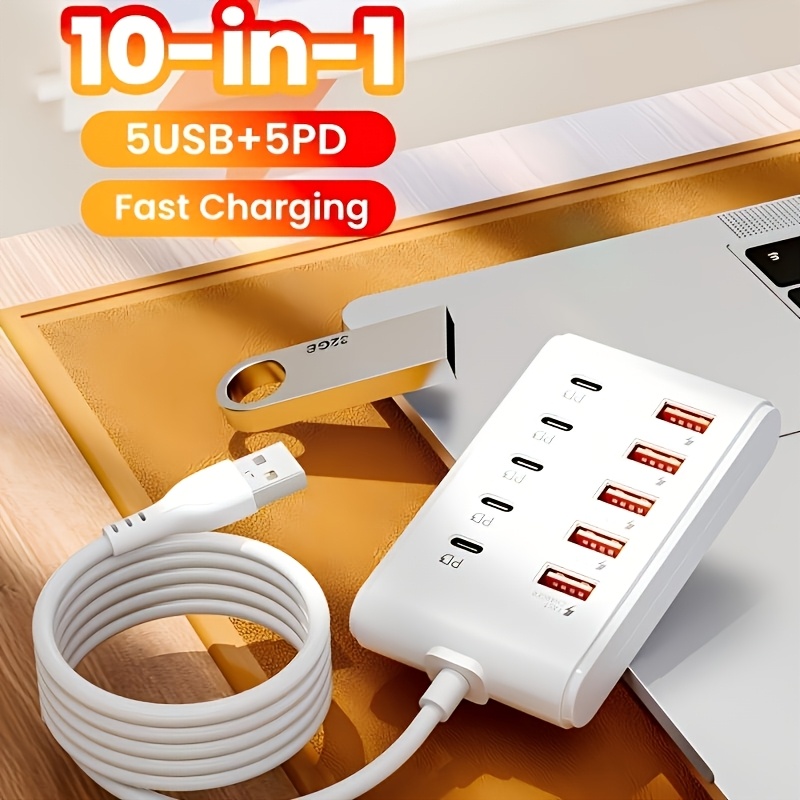
Port count sounds simple, but more is not automatically better. Eight ports on a tiny unpowered hub can share limited bandwidth and power. Plug in two external SSDs, a webcam, and a card reader, then copy files while streaming video, and performance can dip. A hub is not a magic bandwidth generator. It divides the connection coming from the laptop. For heavy storage work, use at least 5 Gbps ports, preferably 10 Gbps if the drive supports it. For multiple demanding devices, a powered model is safer.
Powered vs Unpowered USB Hubs: The Boring Detail That Prevents Dropouts
Unpowered hubs take electricity from the host computer. They are portable, clean, and fine for light accessories. Think mouse, keyboard, flash drive, controller receiver. Powered hubs use an external power adapter. They are bulkier, but they handle multiple drives, charging devices, and desktop peripherals with fewer random disconnects. The Atolla-style powered hubs with individual port switches are not elegant travel gear, but for streamers or desktop users with many USB-A devices, they make sense.
Gaming rigs expose weak hubs quickly. A keyboard and mouse may work anywhere, but add a USB microphone, webcam, RGB controller, external capture device, and headset DAC, and the power budget gets tight. Random audio crackle or webcam resets are often not “Windows being Windows.” Sometimes the hub is just underfed.
Travel flips the priorities. A compact design matters when every ounce goes into the backpack. Hubs around 1.75 oz, like small 5-in-1 or 7-in-1 USB-C models, disappear into a pouch and cover the basics. The trade-off is fewer full-speed ports, shorter cables, and sometimes no USB-C data socket. The Hiearcool-style tiny 7-in-1 design works well for quick SD card imports and hotel-room HDMI. It is not the best command center for a permanent desk.
Build matters more than people admit. Build quality shows up in the shell, port fit, cable strain relief, heat control, and whether the hub creaks under pressure. Aluminum housings often feel sturdier and dissipate heat better, though good plastic can still survive daily desk use. Loose ports are a red flag. So is a fixed cable with no bend protection. That cable fails, and the whole accessory becomes e-waste.
Brand reliability is not blind loyalty. It means checking whether the maker labels speeds clearly, publishes power specs, updates compatibility notes, and has a return path if HDMI or PD behaves badly with a specific laptop. Even good brands ship odd compromises. Example: a premium hub may include Ethernet and 4K 60Hz HDMI but no USB-C data port. Annoying, if the laptop only has two USB-C ports.
The price range usually tracks features. Basic USB-A expansion can sit near $10 to $20. Small USB-C hubs with HDMI and charging often land around $20 to $45. Better 8-in-1 options with Ethernet, 10 Gbps ports, stronger PD, and 4K 60Hz HDMI may push $50 to $90 or more. Spend for the ports that solve real problems. Skip the decorative extras.
A practical buying rule works well: choose the hub that covers daily needs with one spare data port, supports the laptop’s charging requirement, and clearly states speed per port. If those three boxes are checked, the odds of buyer regret drop fast.


